
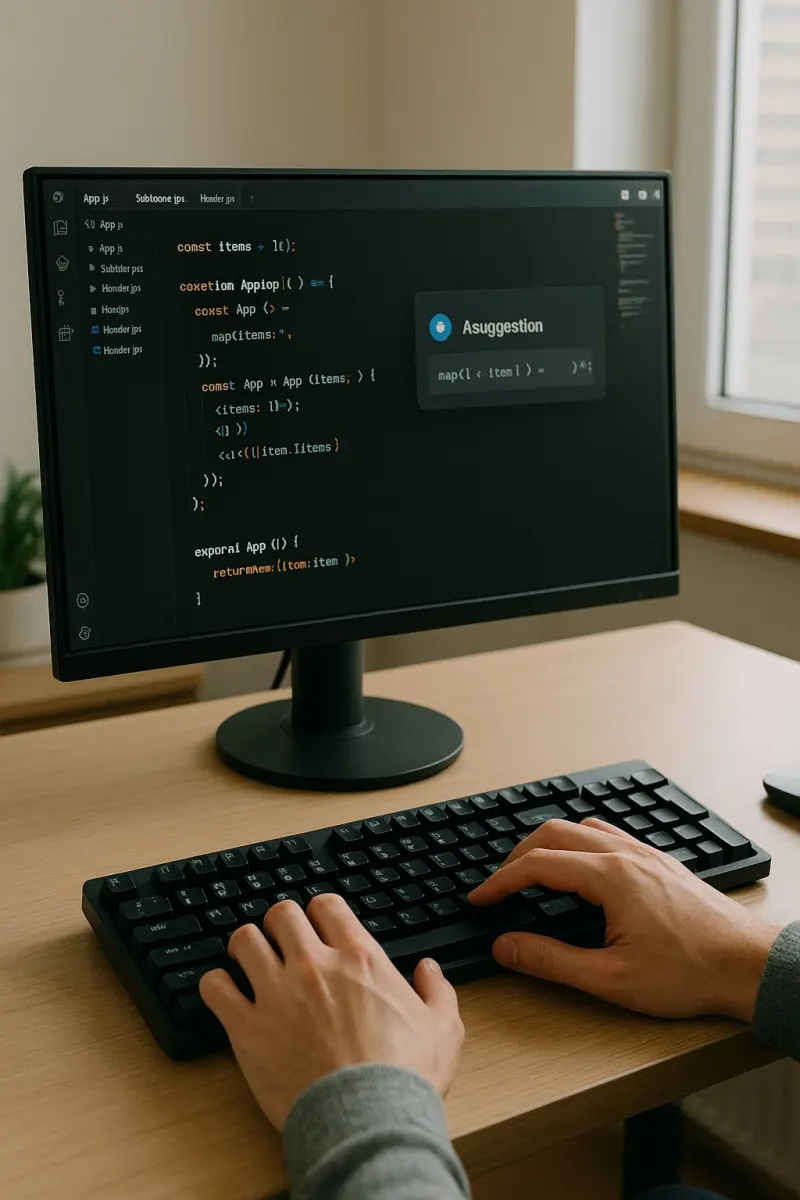
Trae is an integrated development environment with an AI
assistant that works like a senior pair‑programmer. It helps you explore large
codebases, edit code safely, manage tasks, run commands, preview web apps, and
keep changes secure and consistent. This guide explains how to use Trae step by
step, with best practices and practical examples.
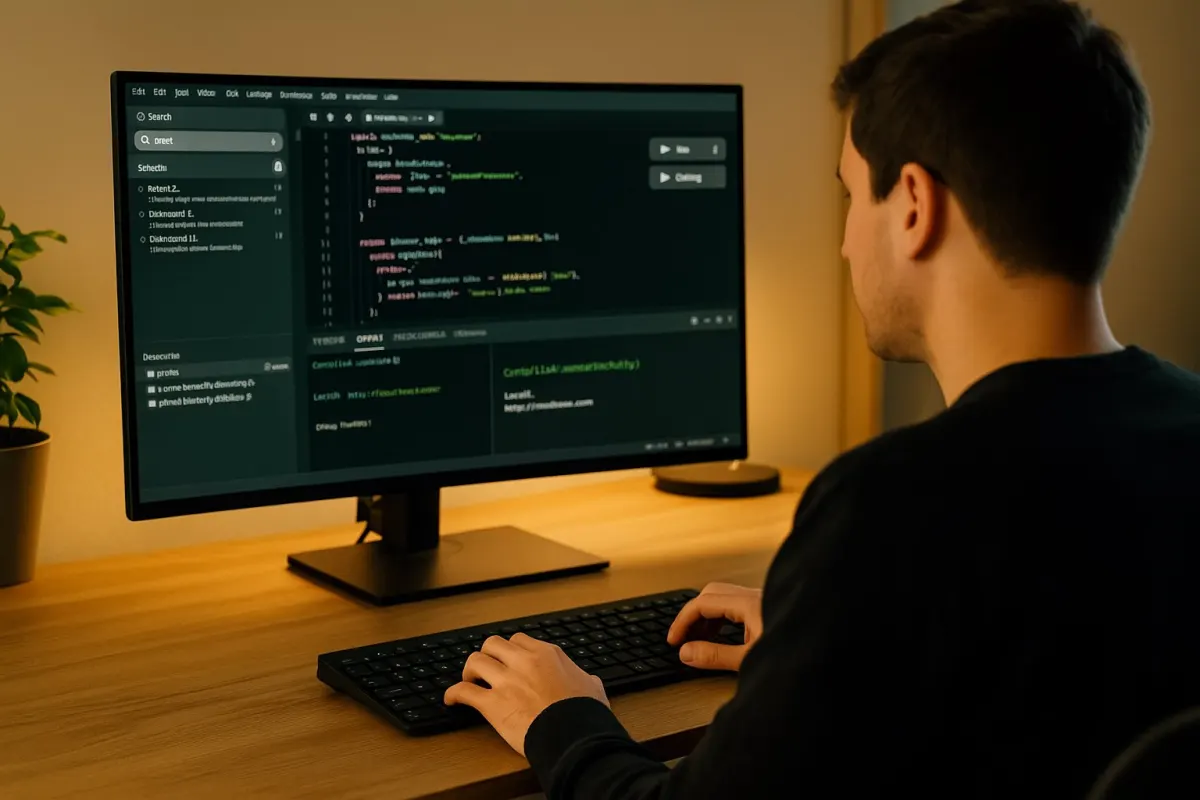
Why Trae?
- Accelerate understanding: high‑recall search across the
whole codebase to find logic and key functions.
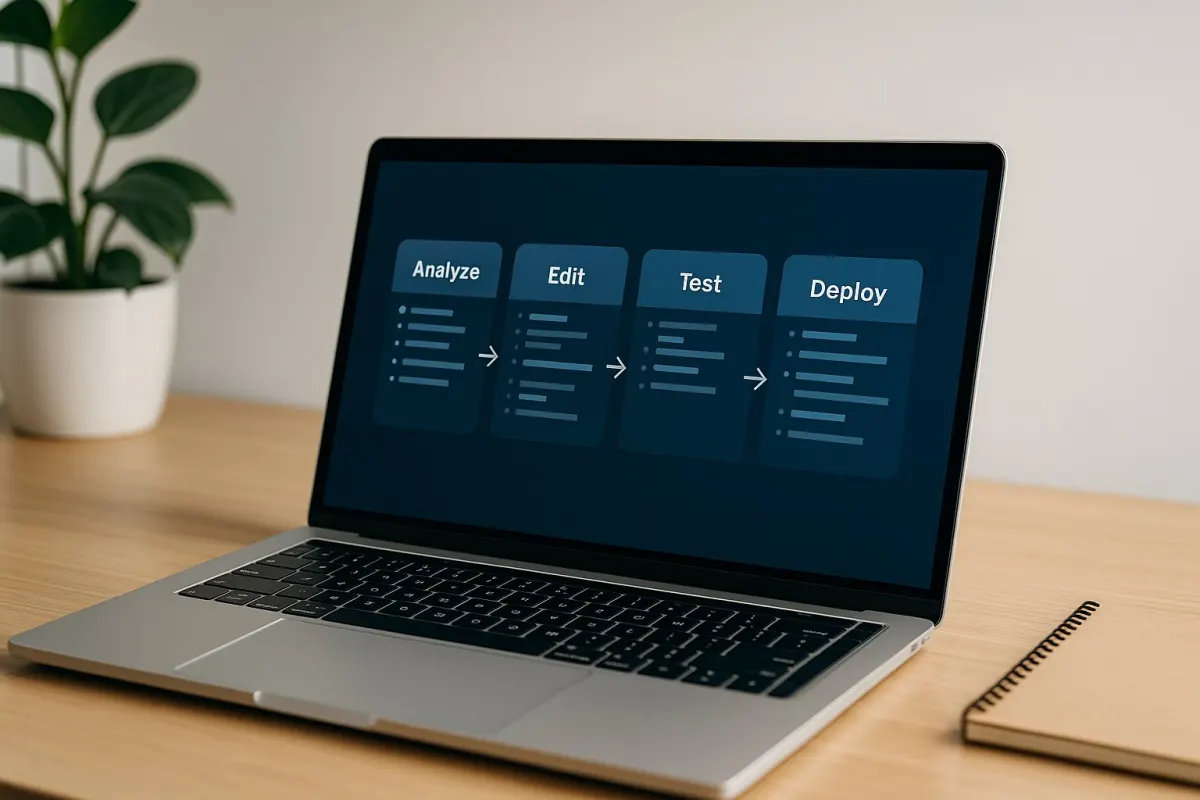
- End‑to‑end execution: analyze → plan → edit → test →
preview — no mid‑way handoffs.
- Respect project conventions: adheres to your code style,
helpers, and tooling.
- Security & privacy: no leaking secrets or keys; avoids
risky changes.
Quick Start
1) Open your project in Trae IDE on Windows.
2) Ask for broad insights: “Analyze the project” or “Where
is article management?”.
3) Define a concrete goal: e.g., “Add a homepage ad at the
top”.
4) Let Trae create a task list and begin implementing while
keeping you informed.
Exploring the Codebase
- Ask to list important folders/files: “Show the admin
folder”.
- Ask for system‑level explanations: “How does
authentication work?”.
- Trae uses a fast context search to catch high‑level intent (e.g., “permission flow”), then narrows down to exact code as needed safe, Structured Editing
- Before editing, Trae reads files to avoid conflicts, then
proposes a clear patch.
- Edits follow your project’s style (PHP/HTML/CSS/JS
conventions, helper functions, etc.).
- No inline comments are added unless you explicitly request
them, keeping diffs clean.
Task Management (Todo)
- For every non‑trivial change, Trae creates a concise task
item (≤ 14 words, verb + outcome).
- Status moves from in_progress to completed immediately
upon finishing.
- Trae aims to complete tasks fully before ending its turn.
Running Commands & Verification
- You can ask Trae to run commands, such as:
- npm run build
- php -v
- composer install
- Long‑running servers are started non‑blocking, with a
preview URL when available.
- If your project has lint/typecheck rules, Trae runs them
to ensure quality. If not, it asks to add or specify the standard commands.
Web Preview
- When a server or preview is launched, a URL (e.g.,
http://localhost:8000/) is provided.
- Live reload applies if your dev tooling supports it.
Collaboration Best Practices
- State clear goals: “Add ad options fields” is better than
“Change ads”.
- Let Trae make reasonable assumptions when details are
missing; it documents them afterward.
- Ask for verification too: “Run the lint” or “Test the
behavior”.
- For bigger changes, allow a task list to keep progress
organized.
Security & Privacy
- No committing secrets or logging keys.
- Avoids XSS/prone scripts by sanitizing HTML where needed.
- Honors cookie consent when inserting ads/third‑party
scripts.
Real‑World Examples
1) Adding homepage ad options:
- Adds
enable/disable toggles and code slots to the admin options page.
- Renders ad blocks
on the homepage while respecting cookie consent.
- Sets sensible
defaults so fields appear immediately in the UI.
2) Improving SEO:
- Sets accurate
canonical URLs for paginated pages.
- Adds meta robots
noindex for on‑site search pages.
- Includes JSON‑LD
BreadcrumbList for articles.
- Extends sitemap
to cover static pages and categories.
- Adds alt
attributes for images and richer social previews.
Troubleshooting
- “Ads don’t appear”: ensure the option is enabled, ad code
is set, consent is accepted, and homepage cache is cleared.
- “The page shows an old version”: delete the cache file or
disable cache temporarily, then hard‑reload.
- “Unknown commands”: specify your build/lint commands; Trae
will remember and run them.
Pre‑Delivery Checklist
- Is the task fully completed?
- Did you run lint/typecheck or add tests?
- Did you clear cache/regenerate sitemap if needed?
- Do changes follow project conventions?
FAQ
Q: Can Trae handle multi‑file changes?
A: Yes. It proposes well‑structured patches for easy review.
Q: Will Trae write documentation?
A: Only when you explicitly ask, and in the format/location
you specify (e.g., a .txt file).
Q: How does it deal with ambiguity?
A: It makes reasonable assumptions, executes, and then
documents them for your review.
Conclusion
Trae is more than an assistant — it’s a partner that
finishes work end‑to‑end, aligned with your project’s style, with security and
clarity. Set the goal, let Trae work, and review the changes confidently.